
Tracking Offline Conversions in Google Adwords Campaigns
About the Author: Uri Bishansky

Find me on:

Introduction
You may not be aware, but by overlooking offline conversions you are decreasing your ability to scale your advertising. In this post I’ll teach you how to easily step up your auditing and start measuring those tricky offline conversions.
Let’s take a step back and clarify what an offline conversion is. Basically it’s any sale that is made offline by a sales person by phone or meeting as opposed to a sale that takes place online (i.e in eCommerce or SaaS websites.
Implementing the following 6 straight forward steps will make your measuring far more precise and your campaigns more profitable.
Setting the stage
Before we get started, I’d like to introduce you to the GCLID (Google Click ID) parameter.
Have you ever noticed that when you click on a Google Ad sometimes the URL you are redirected to has additional digits and characters? If you haven’t, try doing it now. Search for a random term on Google and click on a Google Ad. You’ll notice the URL will present the acronym GCLID followed by a series of numbers. These characters reflect a GCLID parameter.
The GCLID parameter is a unique parameter that is passed in the URL for each click that occurs on Google. This parameter enables pin pointing the exact revenue accumulated with each keyword/adgroup/campaign in your account.
Now, let’s dive in.
Step 1: Enable Auto-Tagging
In order for Google to Auto-Tag the URL and add the GCLID parameter you must enable it to do so.
Click the gear and press Account Settings.
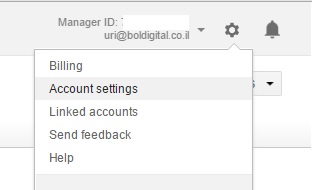
Click on preferences and set the Auto-Tagging to ‘YES’.

Once authorizing this, each click will generate a unique GCLID and will be passed in the URL.
Step 2: CRM Integration
In order to take advantage of this parameter you’ll need to adapt your CRM by adding a designated custom field. For convenience sake, I recommend calling it GCLID by any name will do.
Since this parameter is in the URL it’s very simple to populate it in within a hidden form field using basic JavaScript:
function getParameterByName(name, url) {
  if (!url) url = window.location.href;
  url = url.toLowerCase(); // Avoiding Case Sensetive
  name = name.replace(/[\[\]]/g, "\\$&").toLowerCase();
  var regex = new RegExp("[?&]" + name + "(=([^&#]*)|&|#|$)");
  results = regex.exec(url);
  if (!results) return null;
  if (!results[2]) return '';
  return decodeURIComponent(results[2].replace(/\+/g, " "));
}
This function should enable you to fetch the parameter value from the URL.
Now all that’s left is to populate the value in the hidden field.
<input type="hidden" name="gclid" value="javascript:getParametersByName('gclid')">
If you are using a multi-page conversion funnel the GCLID will not stay at the URL so the best practice is to set a cookie and store the data.
Here is a simple code to implement:
  function setCookie(name, value, days){
    var date = new Date();
    date.setTime(date.getTime() + (days*24*60*60*1000));
    var expires = "; expires=" + date.toGMTString();
    document.cookie = name + "=" + value + expires + ";path=/";
  }
  function getParam(p) {
    var match = RegExp('[?&]' + p + '=([^&]*)').exec(window.location.search);
    return match && decodeURIComponent(match[1].replace(/\+/g, ' '));
  }
  var gclid = getParam('gclid');
  if(gclid){
   var gclsrc = getParam('gclsrc');
   if(!gclsrc || gclsrc.indexOf('aw') !== -1){
     setCookie('gclid', gclid, 90);
   }
  }
Congrats! now, each time a lead is submitted the GCLID parameter will be attached to it in the CRM.
Step 3: Setup an Offline Conversion
Click the Conversion Tab, create a new Conversion and select the Import Conversion option
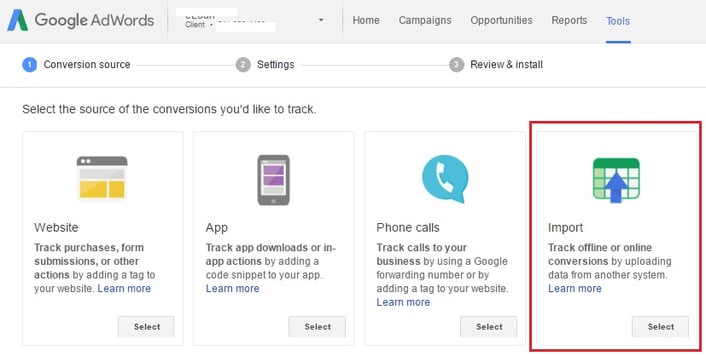
Make sure of the following:
- The name you assign to the conversion will be used in the excel spreadsheet later and must correspond with the name in adwords.
- Assign a value for each conversion to maximize ROI calculations
- If a typical customer only buys once, make sure you select “Count Once” rather then Count every.
- Include Conversion Columns in order to make the data visible in your reports.

Step 4: Export data from CRM
Once you have enough data accumulated (I suggest no less than a week) export the data from your CRM and plot a table that consists the following fields:
GCLID, conversion Time, Conversion Value, Conversion Currency, Conversion Name (if applicable).
Download Our 30 Lead Generation Tips, Tricks And Ideas eBook
Export the data of the leads that turned into customers only. I suggest to always take a look 90 days back (the maximum timeframe allowed by Google Adwords) and to plot the table for the entire 90-day period. I recommend this because sometimes it takes a few weeks for a lead to turn into a customer.
Download the Google Adwords conversion upload template
Populate the table using your data.
Here is an example of a filled table:
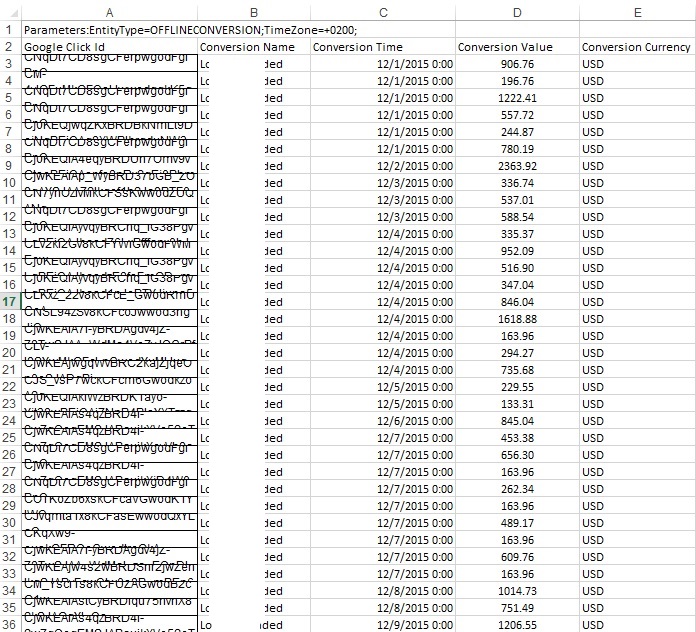
Step 5: Upload the Conversion Data You’ve Prepared
Once you have the file ready, log into Google Adwords and click the Tools->Conversion Tab:
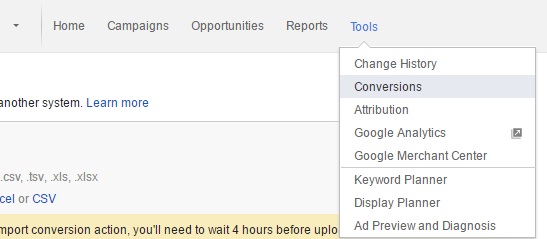
In the Conversion window click the Uploads tab on the left
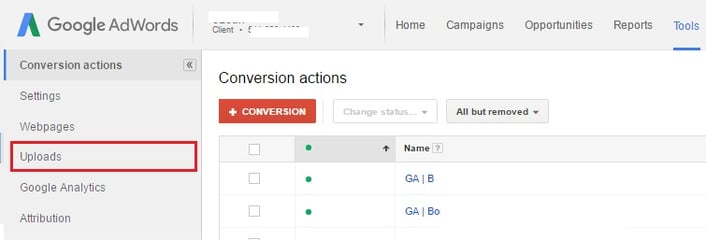
In the Uploads screen, select the file you prepared in the previous section and upload it.
The result will be a preview display of how this upload will affect your account.

Estimated conversion changed: this shows how many GCLIDs Google was able to track in the account (remember you can only track up to 90 days since the initial click)
Change To: this shows information on each row from the file you uploaded and specifies whether it was tracked, and if so – what change will be applicable.
Once you are feeling confident click the Apply Changes Button – this will apply the changes to your account. This action is non reversible.
Once you apply changes it takes up to 48 hours for changes to appear in the account.
Step 6: Optimize
Now that you have offline data you can truly optimize your campaings for ROI.
You will now be able to measure, on a keyword level how much revenue was generated from each keyword. You can utilize this information in order to create a custom column that calculates the ROI from the keyword/adgroup/campaign level.
To set up your columns click Columns->Modify Columns and select the Conversions tab.
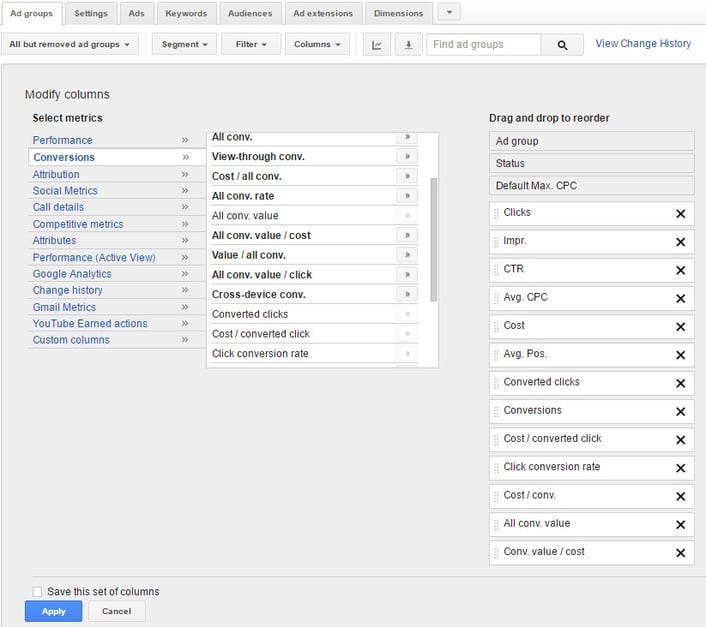
There are many different metrics you could use here, the suggested top metrics are:
Cost/Conv, Conversion Value, and Conversion Value/Cost. (for this specific optimization task). Conversion Value/Cost calculates the exact ROI from each keyword/adgroup/campaign.

As you can see, this specific adgroup at a specific time frame spent 4,205 ILS and turned up generating a revenue of 24,754 ILS on offline sales.
Read more about:
- Auditing Google Adwords Campaigns
- 5 Rules of thumb for creating killer landing pages
- How to create Attention Grabbing Persuasive Calls to Action
Conclusion
Tracking offline conversions can supercharge your optimization capabilities and help you grow your business drastically..
If you found this useful, and you’re curious to learn more and find out how to improve your lead generation, we invite you to download our 30 greatest lead generation tips tricks and ideas eBook.

Uri Bishansky
Uri is the co-author of the Amazon no.1 Bestseller "The Smart Marketer's Guide to Google AdWords". He has been programming since he can remember himself. He lives by excels and numbers, rides bikes, loves dogs and a keen self-educator. Uri has a degree in finance and has been a google partner since 2013.
SHARE THIS STORY
Uri is the co-author of the Amazon no.1 Bestseller "The Smart Marketer's Guide to Google AdWords". He has been programming since he can remember himself. He lives by excels and numbers, rides bikes, loves dogs and a keen self-educator. Uri has a degree in finance and has been a google partner since 2013.


