Attribution Modeling Using Google Analytics
About the Author: Uri Bishansky

Find me on:
Introduction
On my last post, I shed a light on the role, importance and kinds of attribution models by giving examples and elaborating on the logic behind each model. In the second post in this series, I am going to share how to apply and compare different attribution models by using Google Analytics.
Before you head on to read this post, make sure you read my previous post in the series: Overview of Attribution Modeling
Attribution Modeling using Google Analytics in 4 Steps
- You can start by clicking on the sidebar of the Conversion Tab and choosing Attribution > Model Comparison

- Once you are on the Attribution Modeling Home Screen, you will be able to see how much is currently attributed to each channel. Keep in mind, the Last Click model is the default model in Google Analytics.
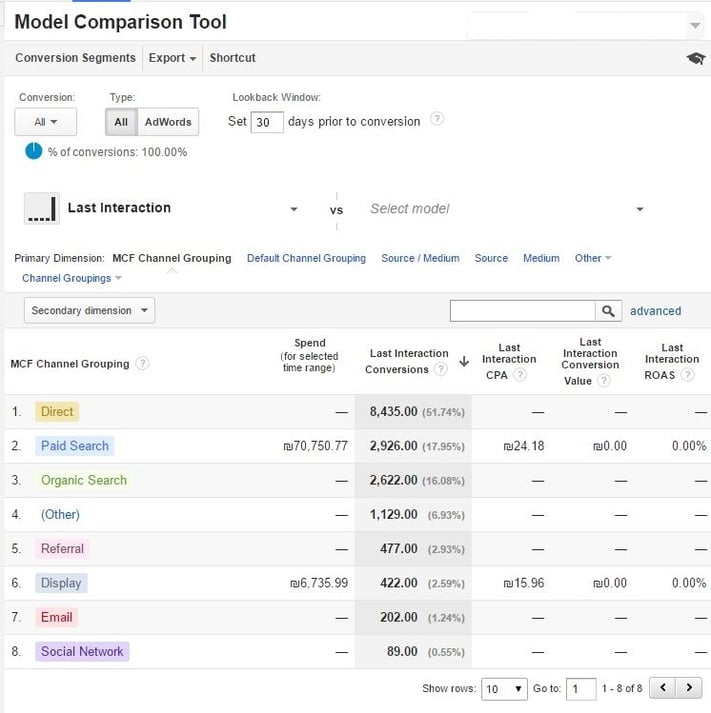
- Now we need to start putting values in the following fields:
- Conversion – select the type of conversions you want to include in the report
- Type – select the type of conversion (AdWords/All)
- Lookback Window – select the timeframe when the first clicks occurred, you can select between 1-90 days.
- Model A – Model A is the baseline for the comparison. the model you select on the Model B part will be compared to model A
- Model B – If you want to select a different model, you need to select it from the drop-down
- Primary Dimension – you now need to choose the dimension breakdown (source/medium, etc)
Once you are done putting in the values, a new report will be generated by Google Analytics comparing one model to the other and calculating new CPAs.

The above chart clearly shows that paid search enjoys 16.45% more conversions attributed to while using position-based model compared to the last interaction model.
Download our 30 Greatest Lead Generation Tips, Tricks and ideas eBook!
How to Create Your Own Attribution Model using Google Analytics
No two businesses are the same; every business has its own products, USP and buyer preferences. If one Attribution model is suitable for one business it does not mean that it will be equally effective and useful for the other. There are some businesses out there which feel the need to define their own attribution models and there is nothing strange about it.
For this, you will have to open the model comparison view and select the model that you want to compare with the current one.

Now click the Create New Custom Model in the Custom Models category. You will now see the following screen appear in front of your screen.
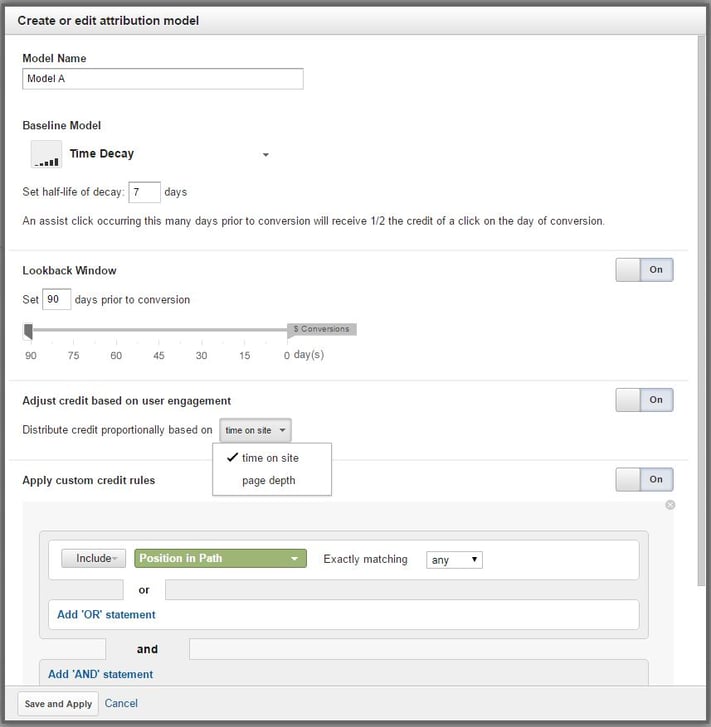
Following are some of the fields that you will have to fill in order to generate your custom Attribution model report.
- Model Name – give a name to your custom attribution model, this name will appear in all the reports.
- Baseline Model – if you choose the Baseline Model, you will have something to lean on
- Set Half-Life of Decay – if you want to use the time decay as the base model, you need to select this option to find out the time frame to decay by.
- Lookback Window – you need to mention the number of days you want to measure prior to actual conversion, select a figure between 1-90 days.
- Adjust Credit Based on User Engagement – by selecting this option, you can attribute more widely among different channels as per the time they were on the site or the depth they reached during their sessions.
- Apply Custom Rules – you can also apply certain custom rules regarding different segments and dimensions in this field.
If you found this useful, and you’re curious to learn more and find out how to improve your lead generation, we invite you to download our 30 greatest lead generation tips tricks and ideas eBook.
Continue expanding your knowledge on Attribution Modeling
- Revenue Attribution – ROI Measurement (Coming soon)

Uri Bishansky
Uri is the co-author of the Amazon no.1 Bestseller "The Smart Marketer's Guide to Google AdWords". He has been programming since he can remember himself. He lives by excels and numbers, rides bikes, loves dogs and a keen self-educator. Uri has a degree in finance and has been a google partner since 2013.
SHARE THIS STORY
Uri is the co-author of the Amazon no.1 Bestseller "The Smart Marketer's Guide to Google AdWords". He has been programming since he can remember himself. He lives by excels and numbers, rides bikes, loves dogs and a keen self-educator. Uri has a degree in finance and has been a google partner since 2013.